
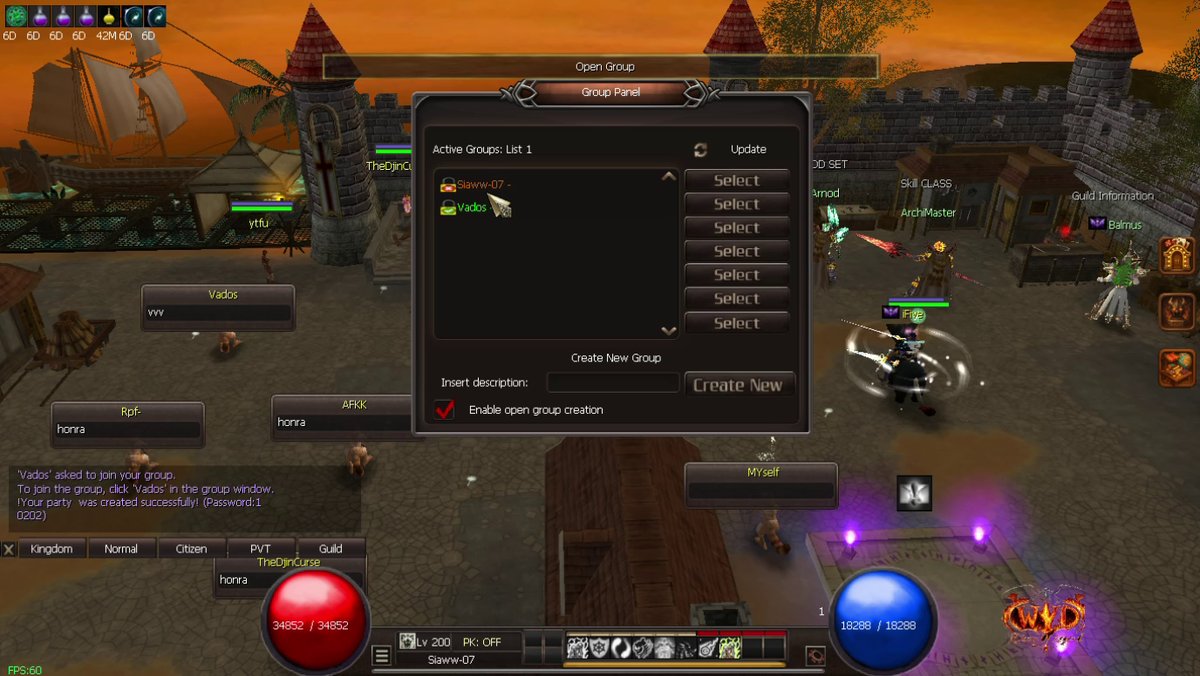
What it does
Press O to open the Group Panel. See every active group, join one, or make your own group: open for everyone or private with a password.
Step 1: Open the Group Panel
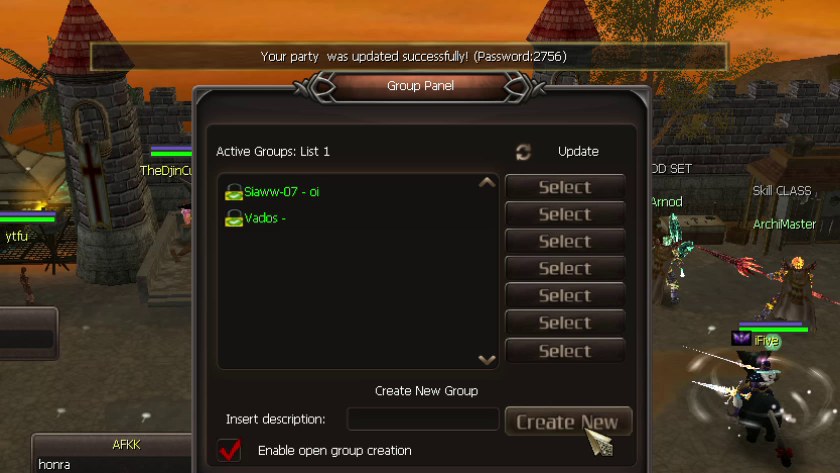
Press O. Active Groups shows each group with the leader name and the group description. Click Update to refresh the list.
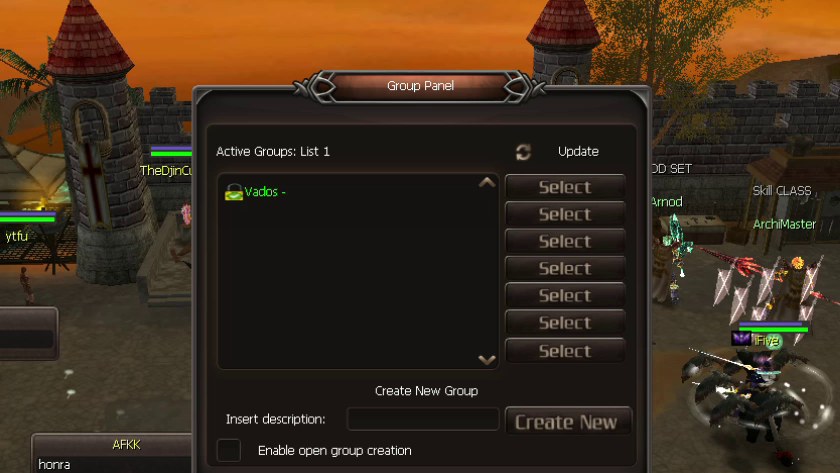
Step 2: Create your group
- Type a short description, for example "boss hunt".
- Leave "Enable open group creation" empty for a private group, or tick it for an open group.
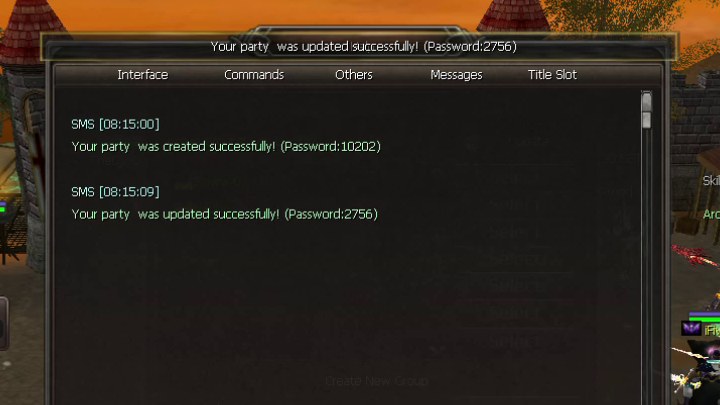
- Click Create New. The game shows your group password, for example "Your party was created successfully! (Password:10202)".
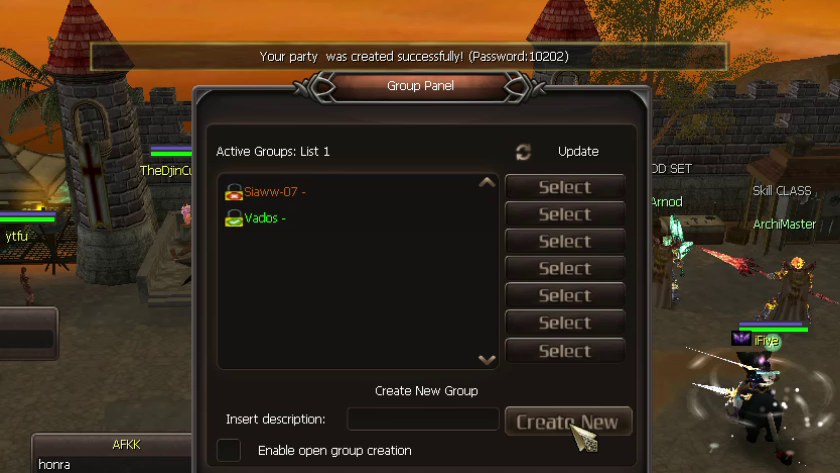
Open or private
- Green icon: open group. Anyone can join.
- Red lock: private group. Players need your password.
- Click Create New again to change the description or switch open/private. You get a new password each time.
Step 3: Join a group
- Open group: click Select next to the group.
- Private group: ask the leader for the password, then type in chat: /enter LeaderName password
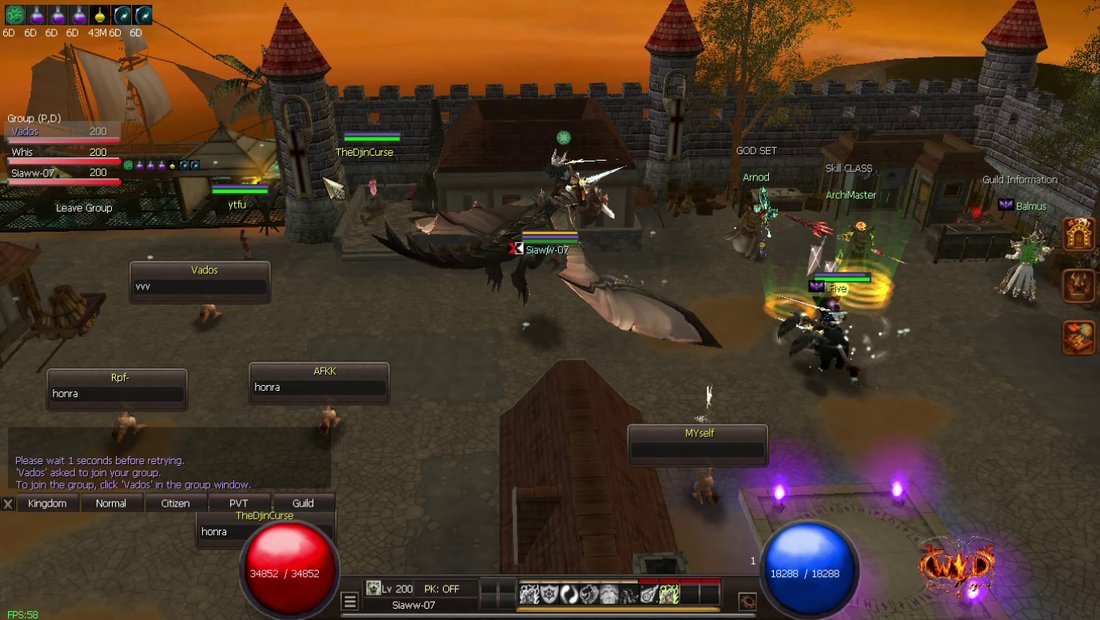
- Your group shows at the top left of the screen. Click Leave Group to leave.
Find your password again
Every party password the game gives you also stays in your messages, so you can look it up later. If the leader leaves, the new leader gets the password in a message.
Moving clip