
Right-click a skin to save it in your album, then press T and click it to wear it. Costume, mount and weapon skins.
Add a skin to your album
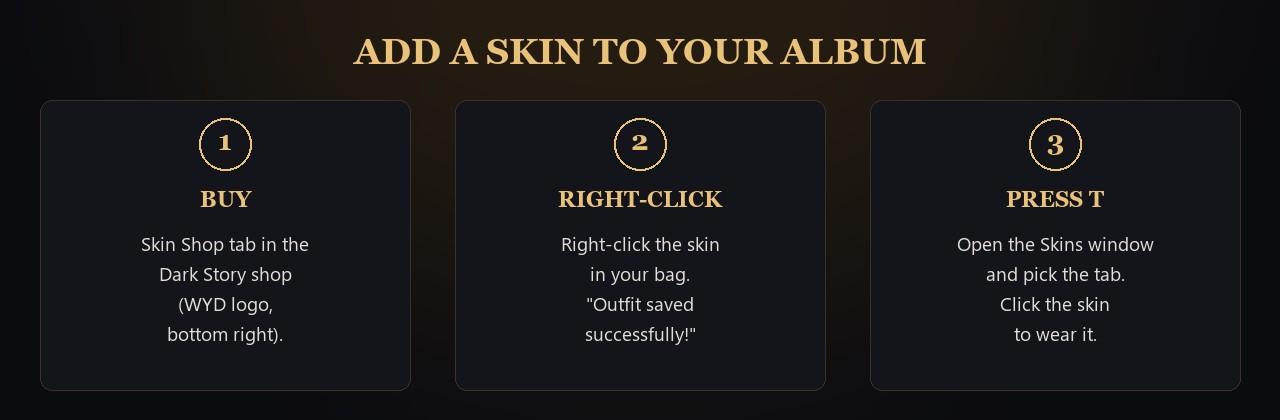
Buy, right-click, press T
Buy skins in the Skin Shop tab of the Dark Story shop (WYD logo at the bottom right).

Right-click the skin in your bag. The game says "Outfit saved successfully!" and the skin goes into your album.
"Has this outfit been used before?" means that skin is already in your album.
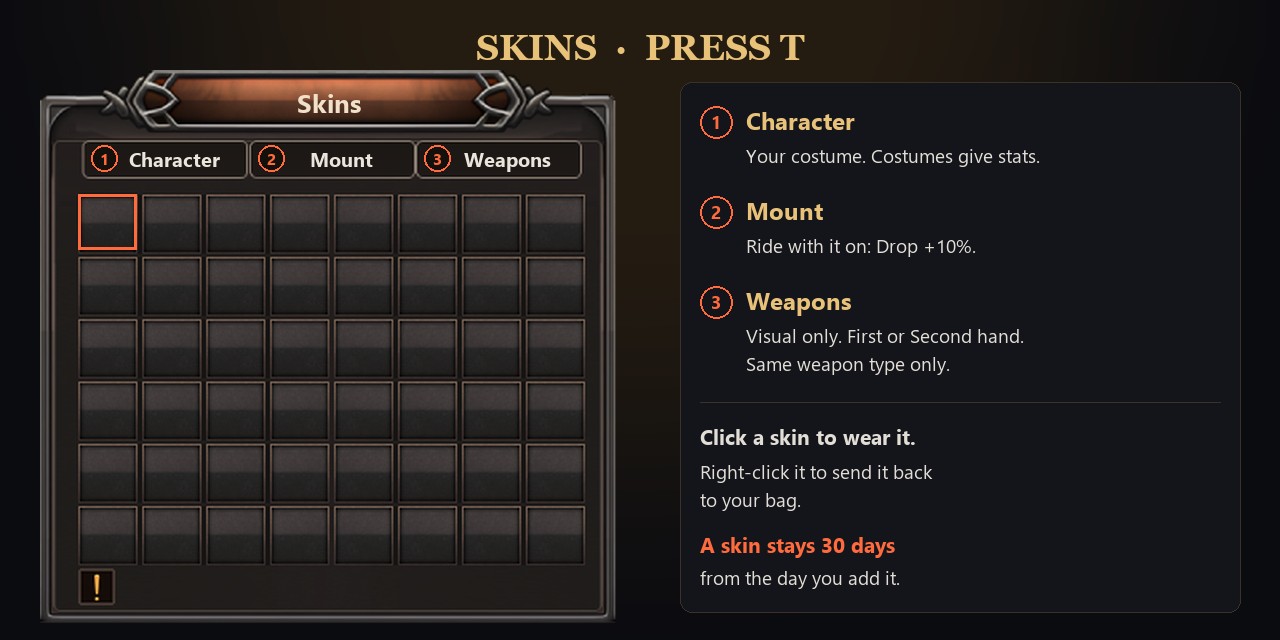
Each album holds 48 skins.
Wear a skin
The Skins window
Press T in game. Press T again to close it.
Pick a tab at the top: Character, Mount or Weapons.
Click a skin to wear it.
Character: your costume goes on the costume slot. If another item is in that slot, take it off first. Costumes give stats (see each one in the shop).
Mount: equip your mount first. Riding with a mount skin on gives Drop +10%. Your mount keeps its own stats.
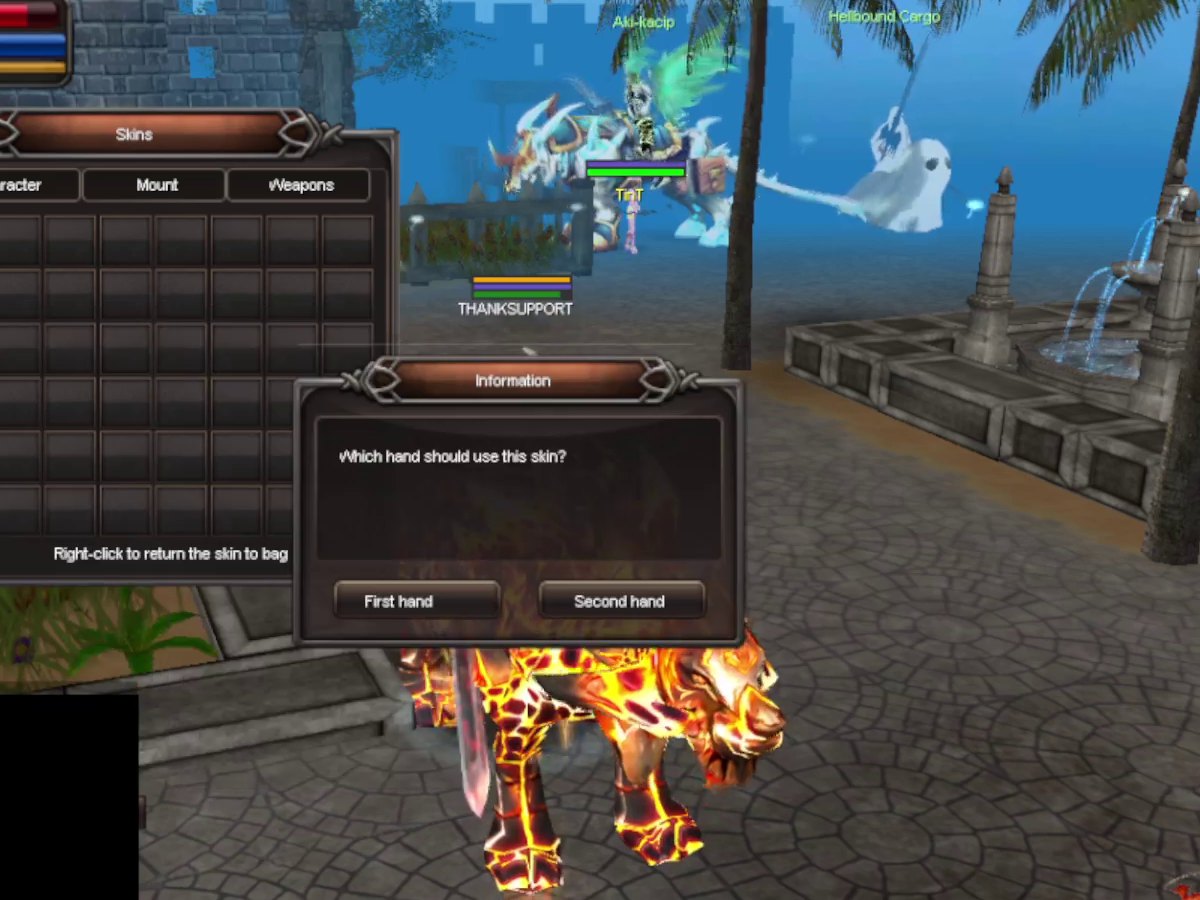
Weapons: visual only, no stats. The game asks "Which hand should use this skin?" Pick First hand or Second hand. The skin only fits the same weapon type, and your weapon keeps its stats and refine.
A mount skin: Drop +10% while you rideA weapon skin with its glow effectPick First hand or Second hand
Take a skin out
Right-click a skin in the window to send it back to your bag. Keep one bag slot free.
How long a skin lasts
A skin stays in your album for 30 days from the day you add it. After that it is removed.